Proxmox GPU Passthrough Tutorial (AMD Ryzen 9 7950X + NVIDIA RTX 5060 Ti)
This post is a cleaned-up tutorial from a real troubleshooting session. The target setup is:
- Host: Proxmox VE on AMD platform
- CPU: Ryzen 9 7950X (with integrated AMD Raphael graphics)
- Motherboard: MSI PRO B650M-A WIFI
- Discrete GPU to passthrough: NVIDIA GeForce RTX 5060 Ti
- Host display stays on the Ryzen iGPU, while the NVIDIA card is dedicated to the VM
If you are on a similar AM5 + NVIDIA setup, this walkthrough should map very closely.
1. What Success Looks Like
Before details, here is the expected end state:
- BIOS has SVM and IOMMU enabled.
- Kernel boots with
amd_iommu=on iommu=pt. - IOMMU groups exist under
/sys/kernel/iommu_groups/. - NVIDIA GPU functions are bound to
vfio-pcion the host. - VM is created with
OVMF (UEFI)+q35, and GPU is attached as PCI passthrough.
2. BIOS Configuration (MSI Click BIOS 5)
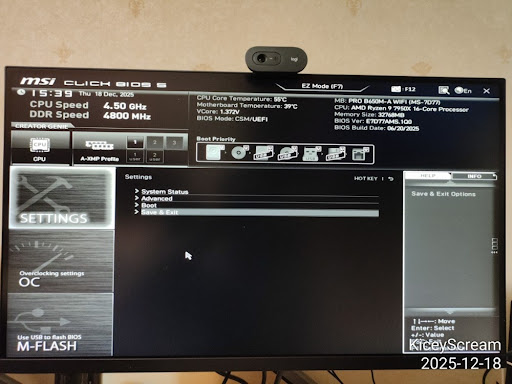
Step 1: Enter Advanced BIOS
Enter BIOS (usually Delete at boot), then switch to Advanced Mode.
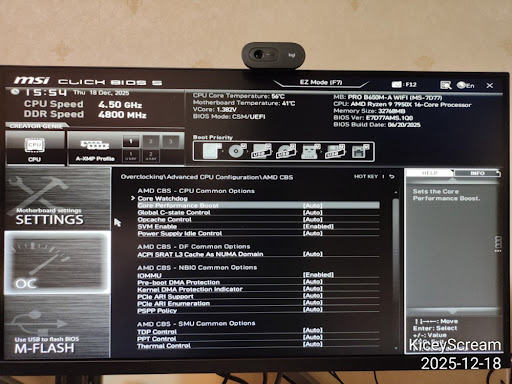
Step 2: Navigate to AMD CBS
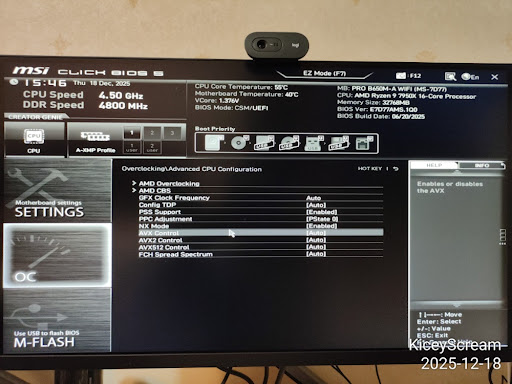
Go to:
OC->Advanced CPU Configuration->AMD CBS
Step 3: Enable Virtualization Features
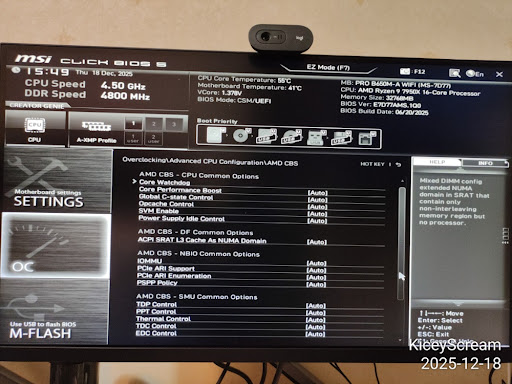
Inside AMD CBS, set:
SVM Enable->EnabledIOMMU->Enabled
Use explicit Enabled instead of Auto for passthrough reliability.
Step 4: Optional Stability Tweak
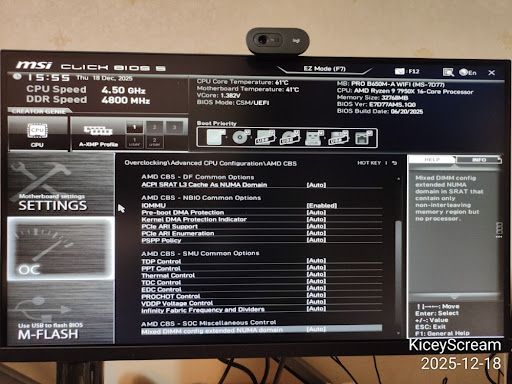
Optional on Ryzen hosts used as servers:
Global C-state Control->Disabled
Other options like Pre-boot DMA Protection and PCIe ARI Support can remain Auto unless you have a specific need.
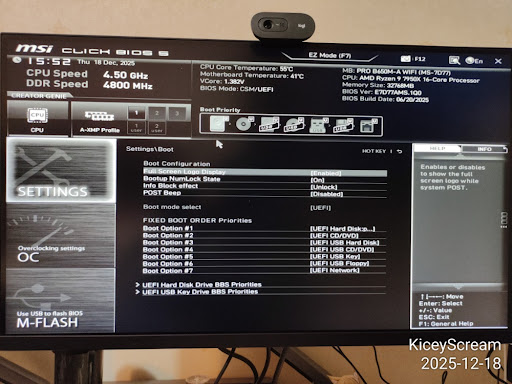
Step 5: Confirm Boot Mode
In Settings -> Boot, confirm UEFI boot mode.
Boot mode selectshould beUEFI
Save and reboot (F10).
3. Verify and Enable IOMMU in Proxmox
Step 6: First Check in Host Shell
On AMD, you may initially see detection lines such as:
This confirms hardware is visible, but we still need kernel flags.
Step 7: Add Kernel Parameters (GRUB)
Check current cmdline:
In this session it showed root=/dev/mapper/pve-root, which indicates GRUB on LVM.
Edit:
Set:
Apply and reboot:
After reboot, verify:
You should now see amd_iommu=on iommu=pt.
Step 8: Verify IOMMU Groups Exist
Quick check:
Better check (shows actual group entries):
If /sys/kernel/iommu_groups/ exists and contains entries, IOMMU is active.
4. Load VFIO Modules at Boot
Historically people edited /etc/modules, but on systemd-based systems the cleaner way is a dedicated file in /etc/modules-load.d/.
Create:
Add:
Update initramfs:
If you see:
that is normal for a GRUB/LVM layout.
Reboot:
5. Bind the NVIDIA GPU to vfio-pci
Step 9: Identify GPU IDs
In this setup:
- NVIDIA GPU:
01:00.0->[10de:2d04] - NVIDIA audio:
01:00.1->[10de:22eb] - Host iGPU (keep for Proxmox): AMD Raphael
11:00.0(amdgpu)
Step 10: Configure vfio-pci IDs
Create:
Add:
Step 11: Blacklist Host NVIDIA Drivers
Create:
Add:
Notes:
- Do not blacklist
amdgpu(host iGPU needs it). blacklist radeonis optional and usually unnecessary on modern Ryzen iGPU setups.
Apply and reboot:
Step 12: Final Host-Side Verification
Success should look like:
The chat session reached this exact success state.
6. Create the Ubuntu VM (Proxmox UI)
Once host-side binding is done, create a new VM instead of reusing old SeaBIOS templates.
Recommended wizard settings:
- OS: your Ubuntu ISO
- System:
- BIOS:
OVMF (UEFI) - Machine:
q35 - Graphics: keep
DefaultorVirtIO-GPUduring install
- BIOS:
- CPU:
- Type:
host
- Type:
- Memory:
- Disable ballooning
- Network:
VirtIO
Then add PCI device:
Hardware->Add->PCI Device- Select
01:00.0(NVIDIA VGA) - Check:
All FunctionsROM-BarPCI-Express
Why only 01:00.0?
- Because
All Functionsalso includes01:00.1audio automatically.
Install Ubuntu, then inside guest install NVIDIA driver and verify with:
7. Troubleshooting Notes
vfio-pcinot in use after reboot:- Recheck
vfio.conf, blacklist file, and rerunupdate-initramfs -u -k all.
- Recheck
- No IOMMU groups:
- Recheck BIOS SVM/IOMMU and kernel cmdline flags.
- Black screen when starting VM installer:
- Keep a virtual display enabled during initial install, then tune display later.
- Confused by
Kernel modules:output inlspci:- It only means modules exist;
Kernel driver in useis what matters.
- It only means modules exist;
8. Summary
The host side is done when both 01:00.0 and 01:00.1 show Kernel driver in use: vfio-pci.
At that point, Proxmox is no longer using the NVIDIA card, and the VM can claim it directly for near-native performance.